
Why Your Home Wi-Fi Slows Down - And What's Actually Causing It
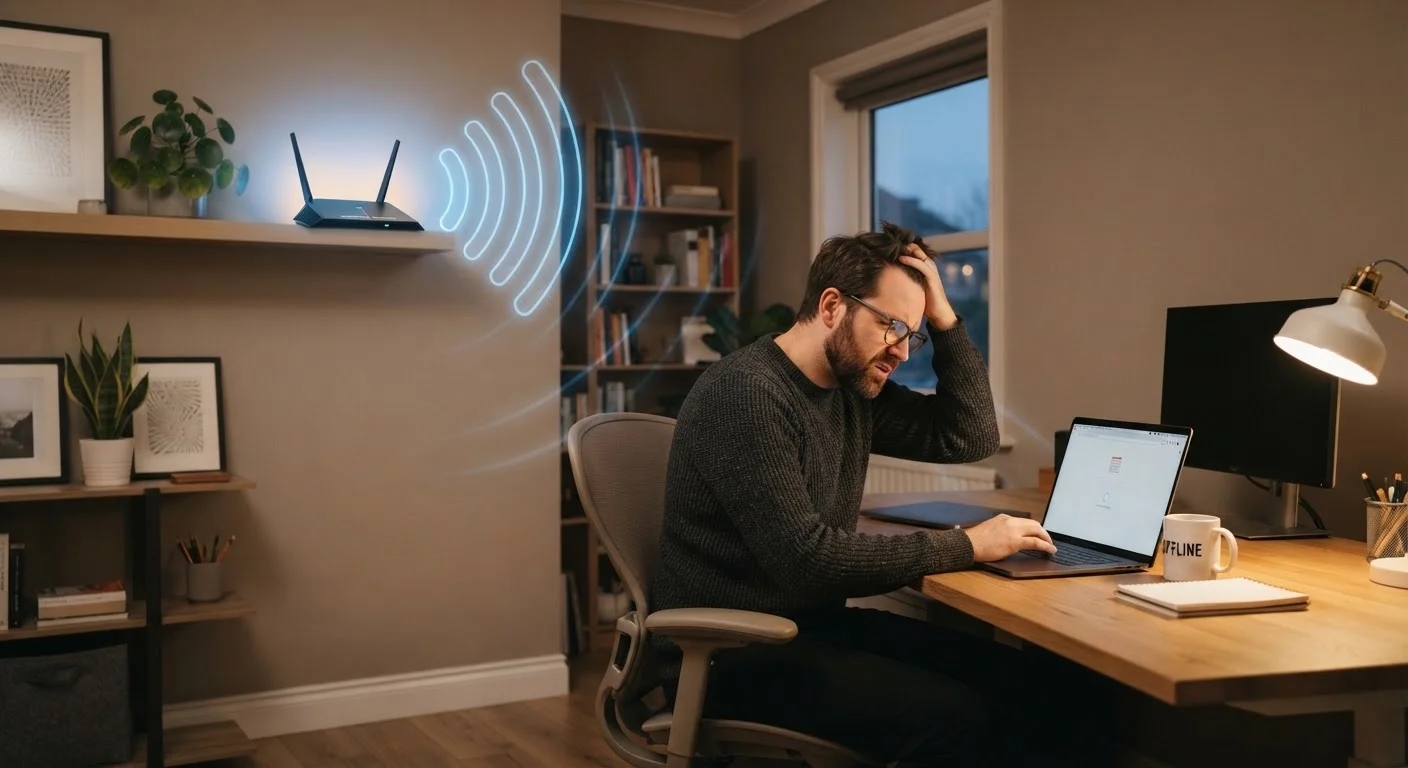
Photo credit: SmartReads.net | Simple Search, Relevant Results
In this article
Dead zones, peak-hour crawls, buffering on calls — unpack the real reasons Wi-Fi underperforms and what each issue means.
Key Takeaways
- Router placement is one of the most overlooked causes of weak or inconsistent Wi-Fi signal.
- Channel congestion from neighboring networks silently degrades your connection speed.
- Outdated router firmware and aging hardware are common but easily missed performance drains.
- Too many active devices competing for bandwidth creates real slowdowns, even on fast plans.
- A few targeted changes - not a new plan - often resolve most home Wi-Fi problems.
The Real Culprits Behind Slow Home Wi-Fi
Buffering during a video call, inexplicable dead zones in a room 20 feet from the router, speeds that crater every evening - these frustrations have causes, and most of them have nothing to do with your internet plan. Understanding what's actually happening on your home network is the first step toward fixing it.
Home Wi-Fi underperformance is almost always the result of one or more identifiable factors: physical environment, hardware limitations, radio frequency competition, or network overload. Each manifests differently, which is why a blanket solution - buying more bandwidth or rebooting the router - rarely works reliably. The mistakes below represent the most common errors homeowners make, why they're so easy to fall into, and what a more informed approach looks like.
Your Internet Plan May Not Be the Problem
Many households upgrade to a higher-speed broadband plan expecting dramatic improvements, only to find performance stays the same. In many cases, the bottleneck is the home network itself - not the speed delivered to your home. Before contacting your ISP, audit your router setup, placement, and device load first.
Common Mistakes That Degrade Your Wi-Fi - And How to Correct Them
Most home Wi-Fi problems trace back to setup and maintenance decisions made once and never revisited. The following patterns appear consistently across households of all sizes and plan tiers.
Placing the router in a corner, closet, or against an exterior wall.
Why it happens: Routers are often tucked away for aesthetic reasons or plugged in wherever the coaxial or phone jack happens to be.
Leaving the router on the same Wi-Fi channel for years without checking for congestion.
Why it happens: Most routers ship with a default channel setting that users never revisit, even as neighboring networks grow and compete for the same frequencies.
Neglecting router firmware updates for months or years.
Why it happens: Unlike phones or computers, routers rarely prompt users to update, and most people don't log into the admin interface after initial setup.
Underestimating how many devices are actively using the network.
Why it happens: Smart TVs, thermostats, security cameras, and phones all maintain background connections, so the device count is often higher than people realize.
Assuming a Wi-Fi extender will solve dead zone problems without understanding the trade-offs.
Why it happens: Extenders are widely marketed as simple plug-in fixes, but they rebroadcast signal rather than extending the original network's capacity.
Restarting Alone Won't Fix Structural Issues
Rebooting your router clears temporary memory and reconnects to your ISP, which can resolve brief dropouts. But if your slowdowns are consistent or tied to specific locations or times of day, a restart is a temporary patch - not a solution. Diagnosing the actual cause will save you repeated frustration.
If you've addressed the mistakes above and still experience persistent issues, a structured review of your broader network configuration is worth undertaking. A home network audit checklist can walk you through the less obvious variables - from DNS settings to band steering - that affect real-world performance. It's also worth separating Wi-Fi myths from facts: common bandwidth misconceptions often lead people to chase the wrong fixes entirely.
2.4 GHz
Most congested Wi-Fi frequency band
The 2.4 GHz band is used by dozens of household devices - including microwaves and baby monitors - creating significant channel competition in dense neighborhoods.
~3-5 years
Typical useful life of a consumer router
Industry guidance generally suggests consumer-grade routers begin to underperform relative to modern device demands after three to five years of use.
For those who work from home or rely on stable connections for video calls and cloud tools, considering a wired connection for your primary workstation is a practical step many overlook. A wired vs. wireless comparison clarifies when Ethernet is worth the setup effort - often, it is.

Author
Technology Editorial Team
Technology Editorial Team is the collective byline for our editorial team and contributor network. Articles published under this byline or an editorial pen name are researched, written, and reviewed according to our editorial standards for clarity, consistency, and independence before publication.
View all articles →