
Setting Up a Wearable Device to Actually Fit Your Routine
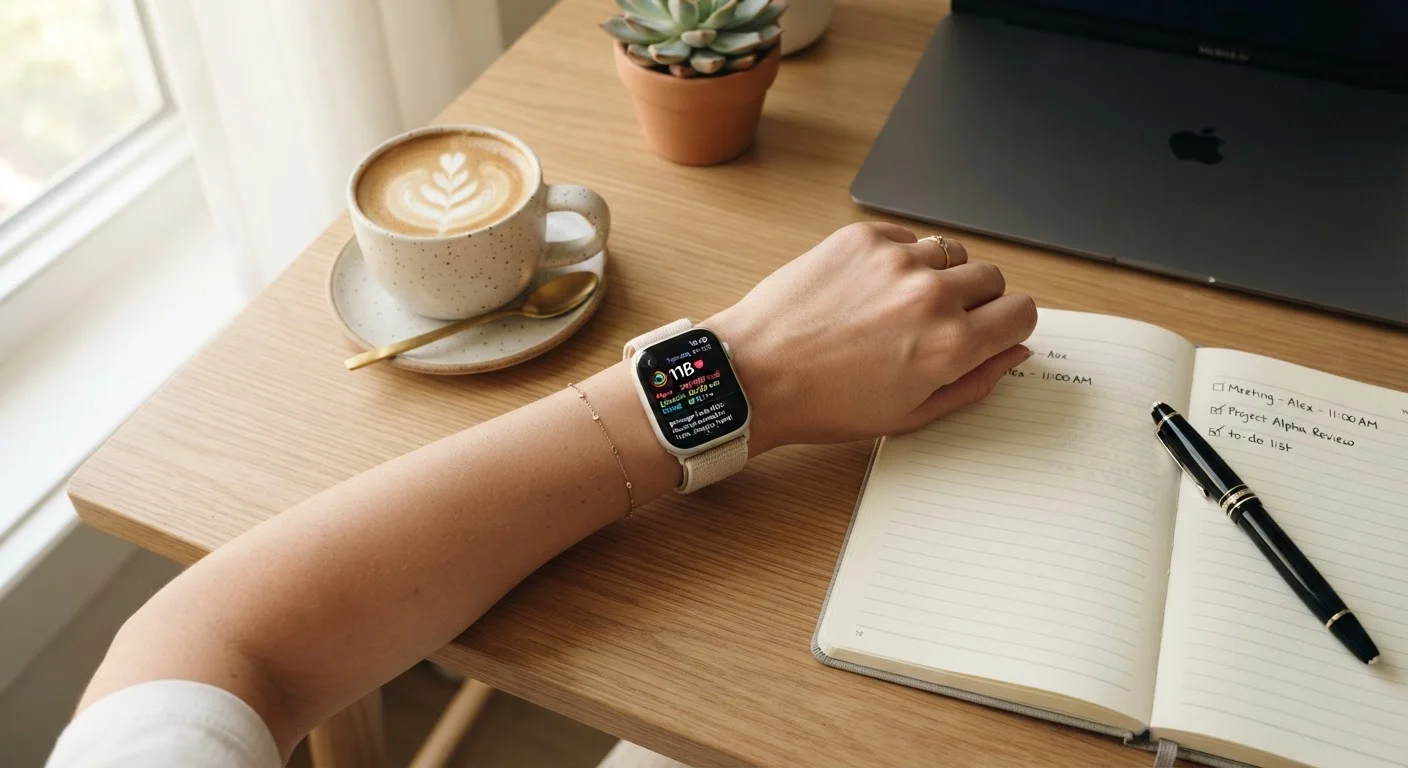
Photo credit: SmartReads.net | Simple Search, Relevant Results
In this article
From personalising health goals to managing notifications, here's how to configure a wearable so it works with your schedule, not against it.
Key Takeaways
- Configuring health goals to match your actual schedule dramatically increases how useful wearable data becomes.
- Notification management is the single most impactful setting most users never fully customise.
- Sleep and activity tracking only work well when the device knows your real daily patterns.
- Regular check-ins with your wearable's companion app data reveal actionable trends beyond the wrist display.
- Wearables are tools for awareness, not medical diagnosis; understand their limits before acting on any alert.
Why Configuration Matters More Than the Device Itself
Most wearables arrive with factory defaults designed for a generic user who doesn't exist. Left unconfigured, the device will bombard a busy professional with irrelevant notifications, track against goals that don't match their life, and produce health data too decontextualised to be useful. If you are new to the category, the Wearable Devices for Busy Professionals: A Starter's Field Guide covers the core concepts worth understanding before you begin.
It's also worth being clear-eyed about what wearables can and cannot do. The common misconceptions around wearable accuracy - particularly around calorie counting and cardiac detection - are widespread. Going into setup with realistic expectations means you will use the data constructively rather than react to every metric as if it were a clinical reading.
Wearables Are Not Medical Devices
Consumer wearables can surface useful health signals - resting heart rate trends, sleep duration, activity levels - but they are not diagnostic tools. Do not use wearable data to self-diagnose or delay seeking medical care. If a device flags an unusual reading that concerns you, consult a qualified healthcare professional rather than acting on the data alone.
What follows is a practical sequence for configuring your device so it reflects your actual schedule, surfaces the data that matters, and stays out of the way when it should.
Wearable device and charging cable
The device itself must be charged to at least 50% before initial configuration to avoid interruptions mid-setup.
Companion smartphone app
Nearly all configuration - goals, notifications, sleep windows, and data access - is done through the manufacturer's paired mobile application.
Smartphone Bluetooth enabled
Required to pair the device and sync settings between the wearable and the companion app.
Your typical weekly calendar
Referencing your real schedule - work hours, commute, workout times - helps you set accurate goals and notification quiet windows.
Before You Start: What You'll Need
Effective setup takes between 20 and 45 minutes if done properly. Before beginning, gather the following:
What you will need
Having your typical weekly calendar open - even just a mental picture of your recurring commitments - will help you make smarter choices during goal and notification configuration. The steps below can be completed in a single session.
Step-by-Step Configuration
Enter accurate personal and health profile data
Open the companion app and navigate to your profile or personal settings. Enter your age, biological sex, height, and weight accurately. These inputs are not cosmetic - they directly affect how the device calculates calorie estimates, heart rate zones, and sleep stage detection. Inaccurate baseline data produces misleading metrics from day one.
Set activity and step goals that reflect your actual week
Resist the urge to accept the default 10,000-step goal without scrutiny. Look at a typical week in your calendar: do you have three days of back-to-back meetings and two days with gym access? Set your daily move and step targets accordingly. Most companion apps allow different targets by day of week - use that feature. A goal you consistently hit builds useful trend data; one you never reach just adds noise.
Define your sleep window and enable sleep tracking
Navigate to the sleep settings in the companion app. Enter your typical bedtime and wake time - even approximate values significantly improve the device's ability to detect sleep stages and calculate sleep quality scores. Enable automatic sleep detection if available, but also set a manual sleep schedule as a fallback. If your schedule varies on weekends, configure separate weekday and weekend windows where the app permits.
Audit and filter your notification settings
This is the step most users skip entirely, and it is the one that determines whether the wearable helps or hinders focus. In the app's notification settings, go through every app on your phone and deliberately choose which ones should send alerts to your wrist. A useful filter: only enable notifications that require a time-sensitive response. Disable social media, promotional, and news alerts entirely. Then set a Do Not Disturb schedule aligned with your deep work hours and sleep window.
Customise your watch face or home screen for your priorities
Most wearables allow you to choose which metrics appear at a glance - heart rate, step count, next calendar event, battery life, and so on. Choose three to four metrics that are genuinely relevant to your daily decisions. A watch face overloaded with data becomes as useless as one with none. If your primary goal is stress management, surface heart rate variability (HRV) and breathing reminders. If it's activity, show active minutes and step progress.
Enable and review health alerts with appropriate context
Turn on any available health alerts - irregular heart rhythm notifications, high or low heart rate thresholds, blood oxygen prompts - but configure the thresholds thoughtfully. Most apps let you set the heart rate alert level; the default is often appropriate, but if you exercise intensely, a high heart rate alert set too low will trigger constantly during workouts. Review the companion app's guidance on what each alert means, and understand that a single alert is a prompt to pay attention, not a diagnosis.
Schedule a weekly review of your trend data
Raw daily readings have limited value without context. Open the companion app's weekly or monthly summary view and look for patterns: Is your resting heart rate trending upward during high-stress weeks? Are you consistently falling short of your sleep target on Thursdays? These patterns - not individual data points - are where a wearable earns its place. Set a recurring five-minute calendar block to review this data each week.
Don't Set Goals You Can't Sustain
Entering an aggressive step count or sleep target based on generic defaults can create unhelpful stress and inaccurate trend data. Start with conservative, realistic targets that reflect your current habits, then adjust upward gradually. A goal calibrated to your actual routine is far more useful than one copied from a factory preset.
Connecting Your Wearable to the Rest of Your Routine
A wearable configured well doesn't operate in isolation - it reinforces broader habits. If you're working on building consistency around sleep, hydration, or meal timing, the data your device surfaces can be a useful checkpoint. For example, pairing your wearable's hydration reminder feature with the habit-building strategies in our guide to meal timing, portion habits, and hydration can make both systems more effective.
One hardware decision that shapes daily usability is how your screen behaves when not in active use. The trade-offs between always-on display and gesture wake affect both battery life and how naturally you interact with the device throughout the day. The always-on display vs. gesture wake breakdown is worth reading before you finalise that setting.
Schedule a Weekly Five-Minute Data Review
Most professionals glance at their wrist throughout the day but rarely open the companion app to review weekly trends. Setting a recurring five-minute calendar block - Monday morning works well - to review sleep consistency, active minutes, and heart rate patterns turns raw data into decisions. Patterns only become visible over time, not in a single day's readings.
The goal is not to optimise every metric simultaneously - it is to make the device genuinely useful for your specific schedule and priorities. Start with these steps, give the data two to three weeks to accumulate, and then revisit your settings with real pattern data in hand.

Author
Technology Editorial Team
Technology Editorial Team is the collective byline for our editorial team and contributor network. Articles published under this byline or an editorial pen name are researched, written, and reviewed according to our editorial standards for clarity, consistency, and independence before publication.
View all articles →