
Home Network Setup: A Practical Audit for Stronger, More Reliable Connectivity
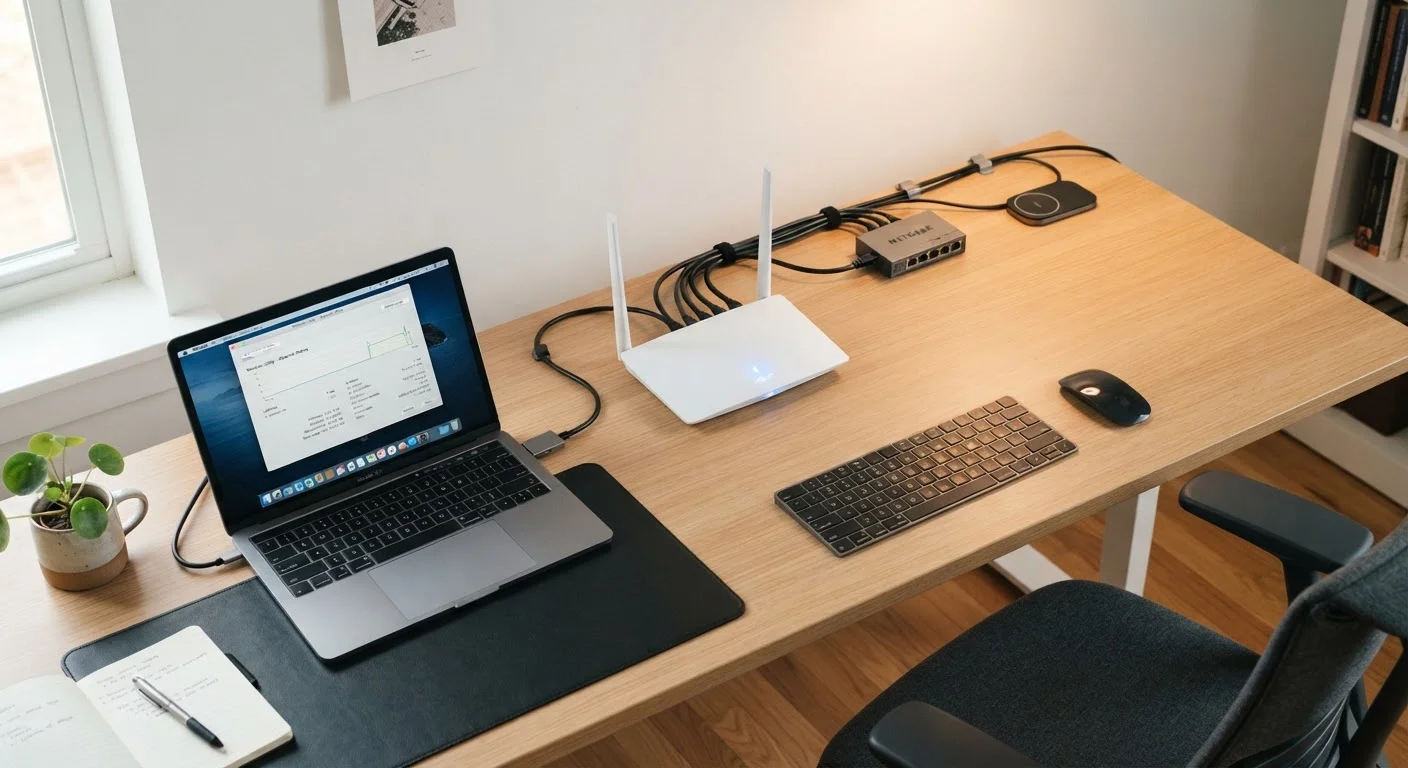
Photo credit: SmartReads.net | Simple Search, Relevant Results
In this article
Run through this checklist to identify weak points in your home network — from router placement to DNS settings.
Key Takeaways
- Router placement and physical obstructions account for a significant share of home Wi-Fi performance problems.
- Default router credentials and outdated firmware are among the most common - and avoidable - security vulnerabilities.
- Splitting devices across 2.4 GHz and 5 GHz bands can meaningfully reduce congestion and improve speeds.
- A custom DNS server can improve both browsing speed and network-level privacy.
- Most home network issues can be identified and resolved without professional help using free diagnostic tools.
Why a Network Audit Matters More Than Ever
For most households, the home network now carries video calls, remote work traffic, streaming, smart home devices, and personal banking - often simultaneously. Yet the average setup has never been formally reviewed since the day the router was plugged in. Slow speeds, dead zones, and security gaps accumulate quietly.
This checklist walks you through every layer of your home network - physical placement, security configuration, firmware hygiene, and performance benchmarking - so you can identify and fix weaknesses in a single focused session. It complements broader digital hygiene practices: once your network is locked down, see our personal digital security checklist to extend the same rigor to your devices and accounts.
Resetting Your Router Erases All Settings
A factory reset will remove your custom SSID, passwords, port forwarding rules, and any QoS configuration. Before performing a reset, document your current settings or export a configuration backup if your router supports it. A restart (power cycle) is different from a reset and is safe to perform anytime.
ISP Equipment May Limit Your Control
If your ISP provides a combined modem-router unit, some settings - including DNS, advanced firewall rules, and band management - may be locked or require an ISP support call to modify. Consider asking your ISP about enabling bridge mode if you want to use your own router hardware for full control.
Tools You'll Need Before You Start
Most of this audit requires nothing more than a browser, a smartphone, and an ethernet cable. Gather these before you begin so you can move through the checklist without interruption.
Wi-Fi Analyzer App
Scans nearby wireless networks to identify the least congested channels, helping you manually optimize your router's channel selection.
Internet Speed Test (browser-based)
Measures your actual download, upload, and ping speeds both over ethernet and Wi-Fi to reveal performance gaps.
Router Admin Interface
Your router's built-in web dashboard for checking firmware versions, connected devices, security settings, and band configuration.
Ethernet Cable (Cat 5e or better)
Required to establish a reliable wired baseline speed test and to connect stationary high-bandwidth devices directly.
Network Mapping Tool (e.g., free LAN scanner)
Generates a map of all devices currently connected to your network, making it easier to spot unauthorized or forgotten connections.
All software tools mentioned are available as free apps or browser utilities. You do not need to purchase anything to complete this audit.
Working Through the Checklist
Work through the groups in order - physical setup issues can mask performance problems that look like software issues, so resolving them first gives you a cleaner baseline. After addressing placement and security, run your speed tests again to measure the difference.
Physical Setup & Router Placement
Security & Access Control
Firmware & Software
Band Management & Channel Optimization
Speed, DNS & Performance Checks
Default Credentials Are a Known Attack Vector
Routers shipped with factory-default usernames and passwords are documented in publicly available databases. Leaving these unchanged means anyone with local network access - or who can reach your admin panel if remote management is on - can take full control of your network. Changing these is the single most impactful security step you can take before anything else.
For context on why network-level security matters beyond your own devices: public networks carry risks that your home network, properly configured, largely avoids. Our article on public Wi-Fi risks explains the specific threats that arise the moment you leave your secured home connection.
After the Audit: Keeping Your Network in Good Shape
A one-time audit closes immediate gaps, but networks are not static. New devices join, firmware releases appear, and your usage patterns shift. Schedule a lighter review every six months - firmware check, connected device scan, and a quick speed comparison against your ISP plan.
The habits that protect your network overlap significantly with broader online safety practices. If you want a framework that extends across every device and platform you use, building safer online habits provides the foundational principles that make individual tools and settings more effective when applied consistently.
A well-configured home network is infrastructure, not a one-and-done task. The 30 to 60 minutes this audit takes is a reliable investment in both productivity and security.

Author
Technology Editorial Team
Technology Editorial Team is the collective byline for our editorial team and contributor network. Articles published under this byline or an editorial pen name are researched, written, and reviewed according to our editorial standards for clarity, consistency, and independence before publication.
View all articles →